Interactive guitar practice with real-time note feedback
Open an exercise, set the tempo, press Start. The tablature scrolls with the metronome, and with Pitch Detect on, the app listens to your guitar and marks each note as a hit or a miss while you play.
Below is what the screen looks like, what the score panel means and how to plug in. You need a free account to play; looking around costs nothing.
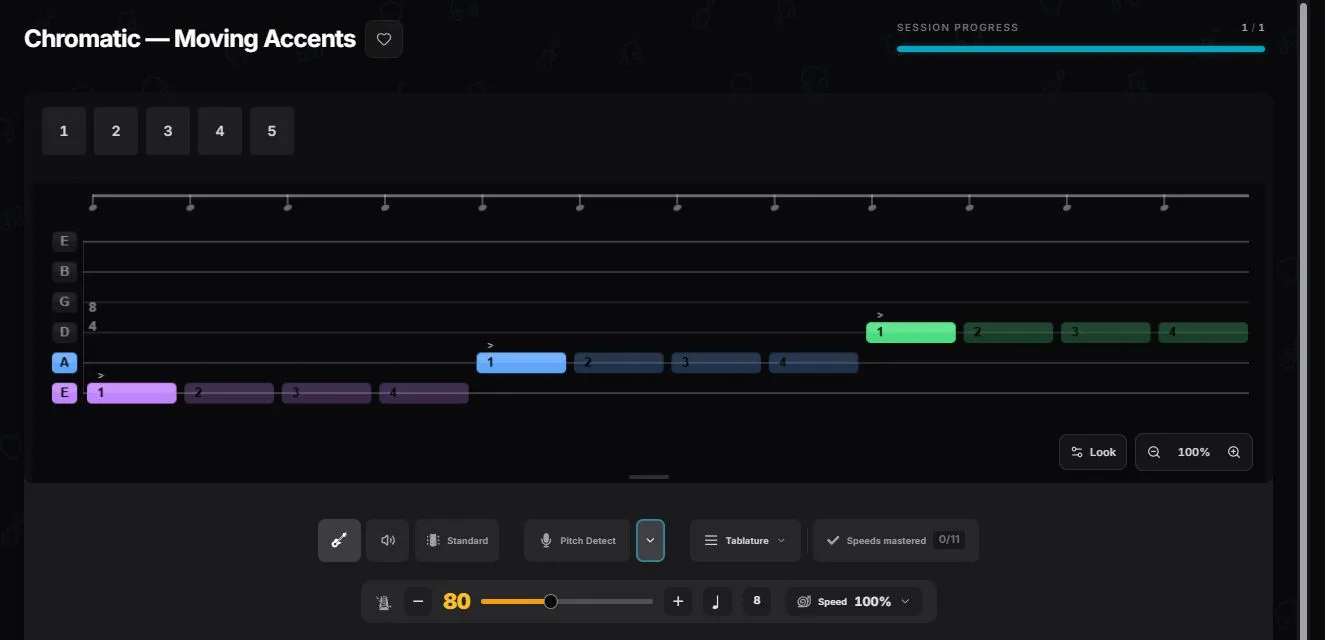
The session
What happens when you press Start
Three controls matter. Everything else on the screen is the exercise itself: instructions, tips and what it trains.
- 01
Set the tempo
The metronome slider sets the click, 80 BPM in the screenshots. The Speed control scales the whole playback, so a hard passage can run at half tempo without changing the drill.
- 02
Turn on Pitch Detect
The button turns green while the app listens. The first time, a short calibration asks how the guitar is connected and hears each string once.
- 03
Play along
The cursor moves through the tab. Each note lights up as a hit or a miss the moment it is due, and the score panel in the corner updates live.
The drill in the screenshots
Chromatic — Moving Accents
Master your dynamic control by playing a chromatic sequence with shifting accents. You will learn to control your pick attack to make accented notes significantly louder and non-accented notes noticeably quieter.
A good first drill for note feedback: slow, so the detector gets clean attacks to read, and short enough to run three times in a row. The accent markers are for your ears; the app only checks the pitches.
Play this exercise with feedbackShow plain-text tab
e|------------------------------------------------------------------------------------------------|------------------------1 ----2 ----3 ----4 ----------------------------------------------------|------------------------------------------------------------------------------------------------|------------------------------------------------------------------------1 ----2 ----3 ----4 ----|
B|------------------------------------------------------------------------------------------------|1 ----2 ----3 ----4 ----------------------------1 ----2 ----3 ----4 ----------------------------|------------------------------------------------------------------------------------------------|------------------------------------------------1 ----2 ----3 ----4 ----------------------------|
G|------------------------------------------------------------------------1 ----2 ----3 ----4 ----|------------------------------------------------------------------------1 ----2 ----3 ----4 ----|------------------------------------------------------------------------------------------------|------------------------1 ----2 ----3 ----4 ----------------------------------------------------|
D|------------------------------------------------1 ----2 ----3 ----4 ----------------------------|------------------------------------------------------------------------------------------------|1 ----2 ----3 ----4 ----------------------------------------------------------------------------|1 ----2 ----3 ----4 ----------------------------------------------------------------------------|
A|------------------------1 ----2 ----3 ----4 ----------------------------------------------------|------------------------------------------------------------------------------------------------|------------------------1 ----2 ----3 ----4 ----------------------------1 ----2 ----3 ----4 ----|------------------------------------------------------------------------------------------------|
E|1 ----2 ----3 ----4 ----------------------------------------------------------------------------|------------------------------------------------------------------------------------------------|------------------------------------------------1 ----2 ----3 ----4 ----------------------------|------------------------------------------------------------------------------------------------|
Input
Two ways to plug in
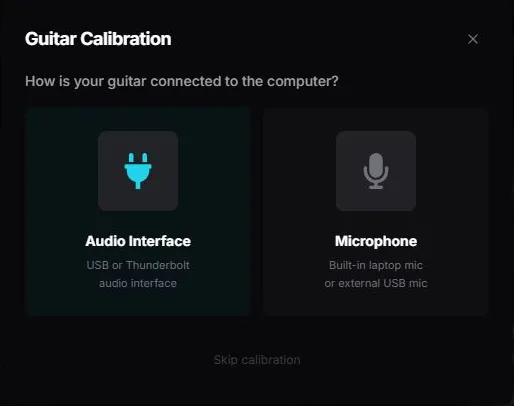
The calibration asks one question first. Both answers work; one is cleaner.
Audio interface
USB or Thunderbolt box, guitar cable straight in
The cleanest signal: no room noise, no metronome bleed, faster response. Pick this if you own one.
Microphone
Built-in laptop mic or an external USB mic
For an acoustic guitar or an amp in the room. It works, with more misses on fast or distorted runs. Keep the metronome in headphones so the click is not heard as a note.
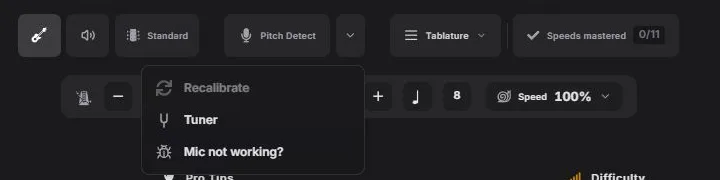
The browser asks for microphone access once. Detection runs on your computer: nothing is recorded, nothing is uploaded. The full calibration walkthrough, the tuning options and the “it hears nothing” checklist live in the note detection guide. Players with an audio interface can also use the desktop app for lower latency.
Feedback
Reading the score panel
Turning Pitch Detect on adds a small panel above the tab. Four numbers, all about one narrow question: did the right pitch come out when it was due.

This is the panel before the first note is played: no points, nothing missed yet, base multiplier. A starting position, not a result.
- Score
- Points for every note the detector confirms, multiplied by the current combo multiplier.
- Accuracy
- Hits as a share of the notes that were due so far. It starts at 100% because nothing has been missed yet and only drops on a miss.
- Multiplier
- Grows one step every five hits in a row, up to x8, and resets when the combo breaks.
- Speeds mastered
- Every exercise with a BPM range has a ladder of tempos between its minimum and maximum, here 40 to 140 BPM in eleven rungs. Finishing the drill at a tempo ticks that rung off.
What the panel does not hear: tone, timing feel, dynamics. A ringing open string can tick a box for you and a fast distorted run can be missed although you played it. If your ear says a take was sloppy and the panel says 98%, your ear is right. The wiki spells out where detection is fooled, and how scoring works explains why your points come from the time you log, not from the hit percentage.
The same note detection runs two game modes: guitar duels, where two players get one exercise and 48 hours to post the better run, and boss fights, where every clean note charges a sword and every miss costs HP.
Frequently asked questions
Setup, calibration and troubleshooting are covered step by step in the knowledge base: Note Detection & Mic Setup
Do I need an audio interface for note feedback?
No. A built-in laptop microphone works for an acoustic guitar or an amp in the room. An audio interface gives a cleaner signal and fewer missed notes on fast or distorted passages, so use one if you already own it.
Does the app judge how good my playing sounds?
No. It matches the pitch it hears against the note that was due and marks a hit or a miss. Tone, timing feel and dynamics are not measured, so a clean-sounding wrong note is a miss and a buzzy right note is a hit. Treat the score as a second opinion on wrong notes, not a verdict on your playing.
Is my audio recorded or sent anywhere?
Pitch detection runs on your computer, in the browser or in the desktop app, and does not record or upload anything. Recording a take is a separate feature you start yourself.