Practice
Note Detection & Mic Setup
How the app listens to your guitar, which exercises use it, the calibration that makes it accurate, and what to do when it hears nothing.
Some exercises don't just show you what to play, they check it. Switch on Pitch Detect and the app listens to your guitar through a microphone or an audio interface, works out which note came out, and scores it against what was on screen. It's the difference between an exercise you tick off and an exercise that argues with you.
The button sits with the playback controls and turns green while the app is listening.
None of this is required. Every exercise can be practised with detection off, and your points come from the time you log, not from how accurately you played. Detection changes the exercise, not the reward.
What it can actually hear
- Tablature exercises
- Every note you play is matched against the note that was due, and lights up as a hit or a miss as the cursor passes
- Strumming patterns
- It listens for the attack rather than the pitch, so down, up and muted strums land on the right slot
- Note Hunt
- You're given a note name and have to find every octave of it on the neck. Playing one marks it found
- Chord Hunt
- Same idea with a chord: play its tones anywhere on the fretboard until all of them are ticked
- Ear training
- The app plays a phrase and you echo it back on the guitar instead of clicking an answer
Two things it deliberately doesn't listen to. The fretboard drills where you're asked to click the note on screen work by mouse or finger, on purpose, so they're usable on a train. And every hunt has a manual escape: you can tick an octave or a chord tone yourself and skip to the next target when you've found it, which is how the hunts work with the mic off.
It is not the judge. Your ears are.
Worth being blunt about this, because the green ticks are persuasive and they shouldn't be.
All the app does is measure pitch. It has no opinion on whether you sounded good. A note played with a dead, choked tone, dragged half a beat late, with three other strings buzzing underneath, is a hit as far as detection is concerned — it heard the right frequency. That is not the same as playing it right.
It's also fooled in both directions:
- It gives you notes you didn't play
- A ringing open string, a harmonic, or the tail of the previous note can land on the pitch it was waiting for and tick the box for you
- It misses notes you played cleanly
- Fast passages, heavy distortion, a room mic, a low B — all genuinely hard to read, and none of it is your fault
- It can't hear the things that matter most
- Timing, dynamics, tone, whether the phrase breathed. None of it is measured, so none of it shows up in the score
So treat the score the way you'd treat a metronome: a useful second opinion on one narrow question, not a verdict on your playing. If your ear says a run was sloppy and the screen says 98%, your ear is right. If the screen says you missed a note you know you nailed, play it again and listen — if it sounded good, it was good, and the software was wrong.
Detection is a tool for catching wrong notes when you're learning something new and can't yet hear your own mistakes. It is not a replacement for learning to hear them. The goal is to need it less over time, not to chase a higher percentage.
Setting it up
The first time an exercise needs it, you get a Mic Tracking prompt with Enable Mic and Skip. Choosing to enable runs Guitar Calibration, a short wizard that only has to be done once per setup.
Audio Interface if it's plugged into a USB or Thunderbolt box, Microphone if you're playing acoustically into a laptop or USB mic
The browser asks once. Say yes, or nothing downstream works
A Signal Level meter turns green when you're loud enough. Drag the gain, or let the automatic setting listen to you play and pick it
You're asked for all six, one at a time, so the app learns how far your guitar sits from concert pitch and stops calling a slightly flat G an F#
The summary shows the offset it measured per string. That's it, saved
Calibrate in the room and on the gear you actually practise on. A calibration done on headphones in a quiet flat is not the calibration you want on a loud amp.
The mic tools
Next to the Pitch Detect button is a small chevron with the things you need occasionally rather than daily.
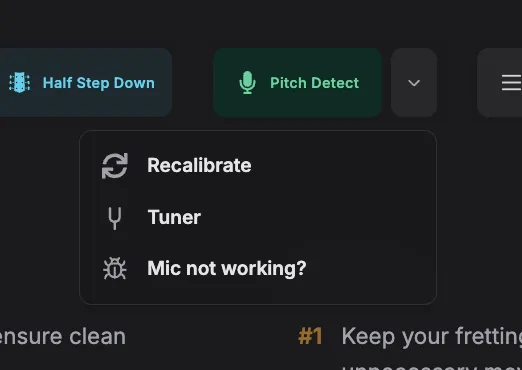
- Recalibrate
- Re-runs the wizard. This is the fix for almost every 'it hears the wrong note' complaint after changing guitar, room or interface
- Tuner
- A proper tuner, without leaving the exercise
- Mic not working?
- A troubleshooting list plus a button that wipes the saved mic setup so you can start clean
Tuning matters more than you'd think
Detection compares what it hears against what it expects, so it has to know how your guitar is tuned. The tuning button in the same row covers Standard, Drop D, Half Step Down, Whole Step Down, Drop C#/Db, Drop C, Open D, Open G and DADGAD, and the targets shift to match, so playing where you'd naturally play still counts.
Some exercises lock the tuning, because the drill only makes sense in the tuning it was written for. When it's locked the button says so instead of opening.
When it's not optional
Learning Path exams that grade your playing require detection and won't let you skip past the prompt: the module can't mark you on something it can't hear. Everywhere else, skipping is a normal, supported way to use the app.
When it hears nothing
- Something else has the mic
- Zoom, Discord, OBS, a second browser tab. Only one app gets a low-latency input at a time, so close the others
- The wrong input is selected
- Set the right device as your system default, then reload
- The system is blocking it
- Windows and macOS both have a privacy screen for microphone access, and your browser has to be allowed there as well as on the site
- Too quiet, or too hot
- A whisper and a wall of distortion are equally hard to read. Aim for the green band on the level meter
- Out of tune
- Detection is a pitch comparison. Run the Tuner first, then Recalibrate
If detection is fighting you for more than a couple of minutes, turn it off and keep playing. A logged session with the mic off is worth exactly as much as one with it on.
Questions people ask
Do I need an audio interface?
No. A laptop microphone works for most drills. An interface is cleaner, quieter and faster, and the desktop app makes it faster still
Does detection change my points?
No. Points come from the time you log and your healthy habits. Accuracy affects the exercise's own score and its stars, not your level
Why does it miss notes I definitely played?
Usually calibration or tuning. Retune, then Recalibrate. Fast passages on a distorted tone through a room mic are also genuinely hard to read
Can I use it on my phone?
Yes, the browser mic path works on mobile, though a phone in a loud room is the hardest case there is
It hears my amp or backing track too
It will. Play through headphones where you can, and keep the room quiet during hunts
Can I practise a mic exercise without a mic?
Yes. Hunts let you tick what you've found by hand and skip on, and tablature exercises simply play through unscored